











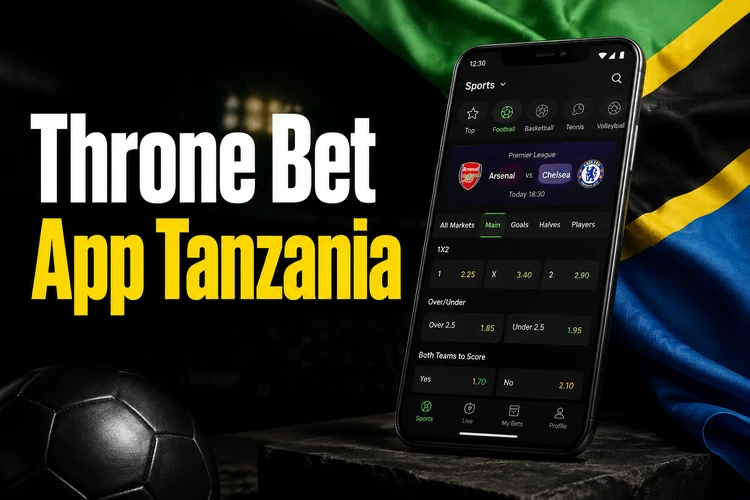
The Throne Bet app provides Android users in Tanzania with mobile access to sports markets, live betting, the bet slip, and account tools. This guide explains how to install the APK safely, keep it updated, and use the mobile website if a dedicated app is unavailable for your device.
App Overview
The Throne Bet mobile app is a dedicated betting client for Android devices. It brings sports markets, live events, the account balance, transaction records, and bet management into an interface designed for smaller screens. Menus and controls are arranged for portrait use, reducing the need to zoom or move between browser tabs.
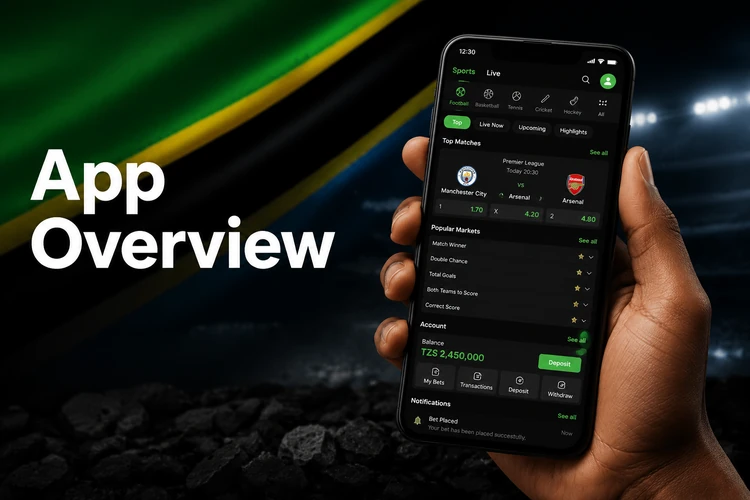
The app may feel more responsive than a browser because some interface files can be stored locally. Notifications can also provide account or event updates when enabled. Password settings, transaction history, and other account functions remain available through the mobile menu. Performance still depends on the phone, network quality, and current app version.
How to Download the Throne Bet App
Open thronebet-tanzania.com on the Android phone where you want to install the app, then use the available app download option. The APK should be saved in the device's Downloads folder or shown in the browser's download panel. The application itself is free, although normal mobile data charges may apply.
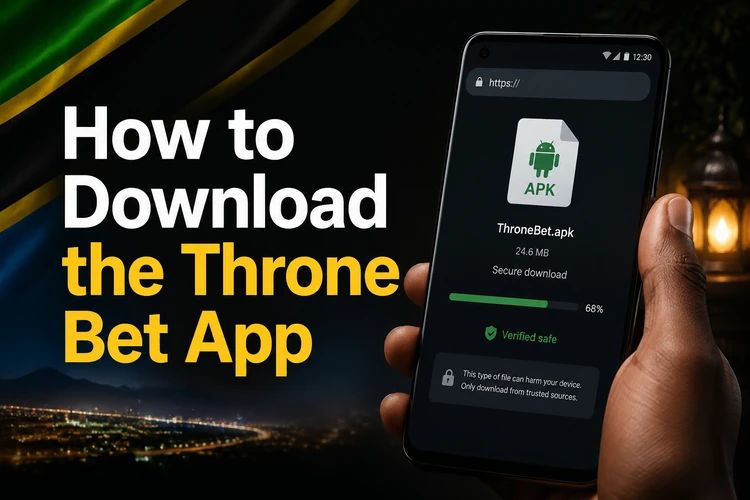
Android treats an APK downloaded through a browser differently from an app installed through Google Play. The phone may therefore request permission for that browser or file manager to install unknown apps. Review the file name and source before granting permission, and avoid copies hosted by unrelated third-party download sites.
Android Installation Guide
Installing the APK requires a temporary permission change on most Android phones. Menu names vary by manufacturer and Android version, but the process is generally the same.
- Step 1: Download the APK to your Android phone and wait until the file has finished downloading.
- Step 2: When Android blocks the installation, open the displayed settings page and allow your browser or file manager to install unknown apps.
- Step 3: Return to the Downloads folder or notification panel and tap the completed APK file.
- Step 4: Review the installation screen, select Install, and wait for confirmation that the process is complete.
- Step 5: Open the app and log in to your account using your existing credentials.
After installation, disable the unknown-app permission again if the device offers that option. This does not remove the app; it simply prevents the browser or file manager from installing another APK without a fresh approval. Keep your login details private and do not install a file if its source or name looks unexpected.
APK Version and Updates
The APK offered on the site should be replaced when a newer production build becomes available. Updates can include security changes, compatibility fixes, or adjustments required by the service. An outdated build may eventually display errors or fail to load current data correctly.
To update, download the current APK and open it as you did during the initial installation. Android will normally treat it as an update when the package is valid. Account information is held by the service, but it is still sensible to know your login credentials before updating. If Android reports a package conflict, do not immediately remove the old app; first confirm that the new file came from the expected source.
Availability on iOS
There is currently no dedicated Throne Bet app for iPhone or iPad. Users on iOS can instead open the mobile website in Safari or another supported browser. The responsive layout provides access to markets and account tools without installing an APK, which cannot be used on Apple devices.
For quicker access, Safari users can add the website to the iPhone home screen through the browser's share menu. This creates a shortcut rather than a native iOS application, so it still requires an internet connection and opens the mobile website.
Main Features
The app supports the main betting workflow: browsing pre-match or live events, selecting markets, adding choices to the bet slip, and reviewing settled bets. Live odds can change quickly, so always check the displayed price and stake before confirming a bet. Single and accumulator options depend on the markets available for each event.
Account tools include balance information, transaction history, deposit and withdrawal controls, and bonus tracking where applicable. Upcoming events can also be reviewed on the fixtures page. For account security, use a password that is not shared with another service and log out when using a borrowed device.
System Requirements
| Requirement | Practical guidance |
|---|---|
| Device | An Android phone or tablet that accepts the current APK |
| Storage | Enough free space for the download, installation, and temporary cache |
| Connection | Stable mobile data or Wi-Fi |
| Software | Current Android security updates where available |
Exact compatibility can change between releases, so the installer message on your device is more reliable than a fixed specification. Before downloading, remove unnecessary files if storage is almost full. A weak or interrupted connection may leave an incomplete APK that cannot be installed, while limited memory can slow live screens that refresh frequently.
Troubleshooting
If the APK will not install, first check that the download has completed and that the browser or file manager has permission to install unknown apps. A corrupt-package message often indicates an incomplete file. Delete that copy, reconnect to a stable network, and download it again rather than repeatedly opening the damaged file.
If the app installs but does not open, restart the phone and check for a newer APK. Blank screens or delayed odds may be caused by a poor connection, so test both mobile data and Wi-Fi if possible. After an update, clear the app cache before considering a reinstall; clearing all app data may sign you out. If the problem continues, use the available options on the contact page and describe the device, Android version, and error shown.
FAQ
Open thronebet-tanzania.com on your Android phone and use the app download option provided on the site. Wait for the APK to finish downloading, then open it from the notification panel or Downloads folder.
An APK should only be installed when it comes from the expected source and the file details look correct. Avoid third-party mirrors, review Android's installation prompt, and disable the unknown-app permission again after setup.
There is currently no dedicated iPhone or iPad app. iOS users can access the mobile website in Safari and add a home-screen shortcut for quicker access.
Yes, the app can be downloaded and installed without an application fee. Your mobile network provider may still charge for the data used during download and normal use.
Download the current APK from thronebet-tanzania.com and open it on the device with the existing app installed. Android will normally recognise a valid package as an update, allowing you to install it without removing the previous version.
You can usually view available events without signing in, but an active account is required to place bets, manage funds, review private account records, or use other transactional features.